
OpenAI’s Codex now supports multi-tab browsing inside an AI session.
This might not seem like much, but it’s another useful example of AI for technical writers that can help resolve some of the most challenging bottlenecks in their workflow. It’s something we’ve used already to create a proof of concept for a client facing challenges related to gathering source information at the start of a documentation project.
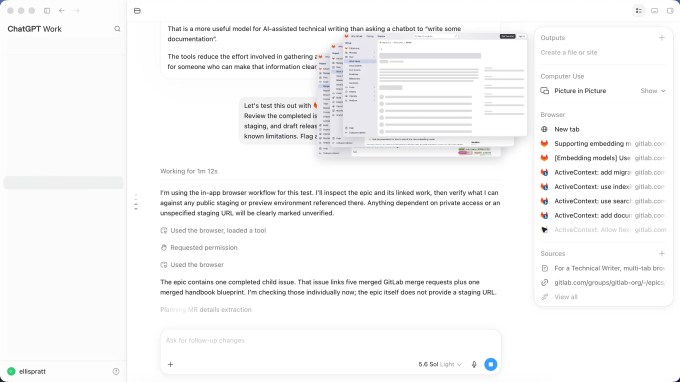
In a technical writing context, Codex can be used as a workspace dedicated to documentation tasks. The workspace can be set up to contain the product, source material, user evidence, and draft copy. You can also include the browser functionality into any skills you create.
This is useful because typically 50% or more of a technical writer’s time is spent on non-writing tasks. Before a technical writer can explain a feature, they might need to inspect the product, read a specification, review support tickets, check terminology and question a subject matter expert. When they’ve written the first draft, they need to get subject matter experts to review the content for accuracy and completeness. They need to collate reviewers’ comments, analyse those comments, and revise the content where required. There can be a lot of time spent finding evidence, resolving contradictions, testing the documentation, and revising drafts.
A sidenote about products and names
In this article, I’m going to refer to Codex. In July 2026, OpenAI merged the Codex desktop app into a new ChatGPT desktop app that has three separate modes: Chat, Work, and Codex. The built-in “Open Browser” panel in the ChatGPT desktop app currently works only inside Work or Codex conversations, but not in normal Chat/Quick Chat. When I refer to Codex, I’m also referring to ChatGPT Work mode.
Claude Code has similar but slightly less capable features. For this article, I’m going to focus on Codex.
What is multi-tab browsing?
Multi-tab browsing allows an AI agent to open and work with several web pages inside the same Codex session.
A technical writer might have separate tabs containing:
- The product or staging environment
- A Jira issue
- A pull request
- Existing documentation
- Support tickets
- Analytics
- A draft Help topic
What’s new, and different, is that all this content is contained in the same workspace and task. The agent can compare the sources, look for discrepancies, and help the writer move from evidence to a checked draft.
Produce release notes from scattered evidence
Release notes rarely arrive as a neat list of customer-facing changes.
The evidence is more likely to be spread across issue trackers, pull requests, internal messages, and the product itself. The description written at the start of development might also differ from what was eventually released.
With Codex, a technical writer has the capability to open tabs for the completed issues, merged pull requests, staging product, existing documentation, and any templates.
They could then ask the agent to collect all the source information, verify it, and create a draft. If there’s anything it can’t verify, it can highlight this to the writer.
The writer still decides what matters to customers and what should remain internal. However, the agent can reduce the work involved in locating the evidence and comparing it with the shipped interface.
Prepare better questions for subject matter experts
Subject matter experts are busy people and often have little time to spare. One way to avoid that bottleneck is to use whatever source material exists and then ask the subject matter experts about the content that’s missing or contradictory.
AI can help by gathering and inspecting the material and preparing questions about the remaining gaps. The meeting can then focus on matters that need expert judgement. That saves time for both people and reduces the risk that important edge cases are missed.
Draft a feature guide while testing the feature
While a specification describes intended behaviour, the documentation needs to describe actual behaviour.
A technical writer could use Codex to help draft the feature guide by separating different types of information:
- What the specification promises
- What the product currently does
- What the API supports
- What the user needs to know
- What still needs confirmation
This is safer than asking an AI to produce documentation from the specification alone. It makes contradictions visible.
Test instructions against the live product
Documentation can look correct while still being unusable.
For example, a renamed screen, missing prerequisite, or a new permissions screen, can break a procedure when someone tries to use it. With the help article open in one tab and the product in another, Codex could follow the documented procedure and record where reality departs from the page. This turns documentation testing into something closer to product testing. The procedure is checked as a user would experience it, rather than reviewed only as text.
There is always a risk, however, in using a non-deterministic tool to carry out testing, as it might not always be totally consistent in how it tests.
Turn support evidence into a documentation backlog
Multi-tab browsing provides a way to retrieve support tickets, community discussions, and help centre searches, then group similar problems and map them to the content that should answer them. This gives the documentation team evidence for its backlog.
Check terminology across several channels
Terminology tends to drift as a product develops. Codex could identify inconsistent terms and propose remedies.
This is the type of work that becomes time consuming when done one page at a time. Comparing the sources together makes the underlying naming problem easier to see.
Review competitors to identify gaps in your content
A competitive documentation review should examine how well each organisation helps users complete a task. Codex could open equivalent documentation from several suppliers, alongside the organisation’s own content. It could then compare and report on the information architecture, examples, onboarding, troubleshooting, and recovery guidance. The answers can reveal gaps in the organisation’s own content.
The agent still needs boundaries
Giving an AI browser access to several systems creates an obvious risk.
The working configuration might include customer information, confidential emails, unpublished product details or administrative controls.
Access should be limited to what the documentation task needs.
For example, aggregated support data is better than a folder that contains personally identifiable information. Any action that changes a live system should require deliberate confirmation.
The writer also needs to know which claims came from which source. If the specification and product disagree, the agent should report the discrepancy, rather than choose whichever version looks more plausible.
These are not “setup and forget” solutions. They require someone with the knowledge to take a critical eye to the output and to know what “good” looks like. Typically, that would be an experienced technical writer. Source judgement remains part of the job.
The important change is the working context
Multi-tab browsing does more than save a few trips to another browser.
It allows the technical writer to organise an AI session around a deliverable. The agent helps by moving information through the following stages:
- Evidence
- Verification
- Writing
- Review
- Publication
The writer still decides what counts as reliable evidence, resolves contradictions, and approves the explanation. That is a more useful model for AI-assisted technical writing than asking a chatbot to “write a user guide”.
A lot of this can be done already, using data connectors and APIs. Multi-tab browsing helps fill in the gaps where this isn’t possible.
The tools reduce the effort involved in gathering and comparing information. But they do not remove the need for someone who can make that information clear, accurate, complete, and useful.
If you’d like a hand figuring out where AI fits in your documentation process, Cherryleaf’s consultancy team is here to help.
Leave a Reply